Your inbox is stealing your time. ✉
You’re not “busy.”
You’re repeating yourself. 🔁
On average, 4.2 hours/week get burned on rewriting and hunting for the same replies.
That’s stolen time.
And you can take it back.
Here are 7 Chrome productivity hacks to reply faster and stop retyping. 📝
1. Pin Your Essential Communication Tabs
Most people leave 20 tabs open and spend half their day clicking through them to find their inbox. This is inefficient and messy. Pinned tabs solve this instantly.
Right-click your Gmail or Outlook tab and select "Pin." This shrinks the tab to just the icon and locks it to the far left of your browser. It can’t be accidentally closed, and it’s always in the same spot.
For knowledge workers, consistency is key. When your inbox is always in the same physical location on your screen, your brain stops searching for it. You just click. It becomes muscle memory.
2. Leverage Tab Groups for Different Projects
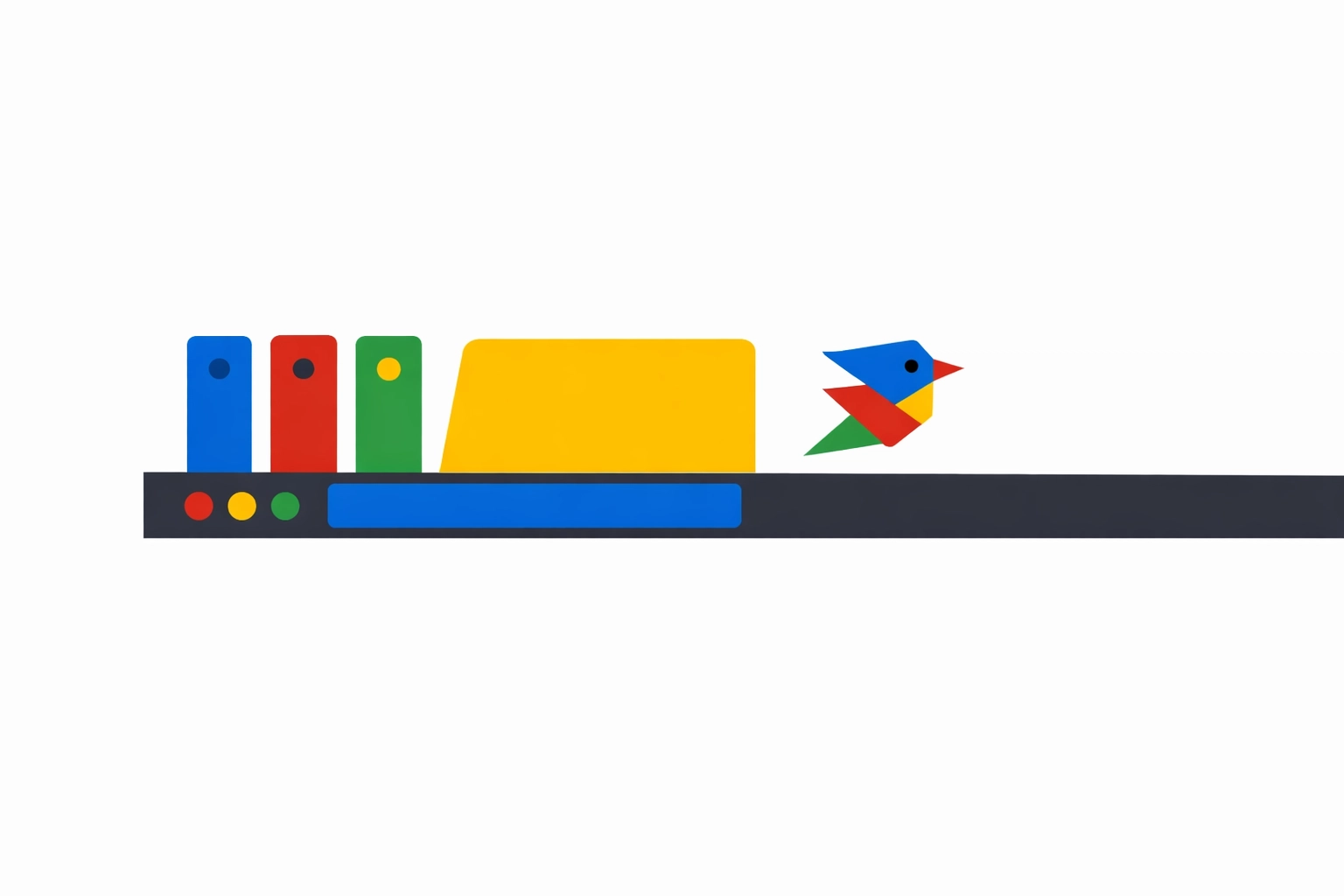
If you are working on multiple clients or projects, your browser probably looks like a chaotic mess of text. Chrome’s Tab Groups allow you to bundle related tabs together under a single color-coded label.
Right-click a tab and choose "Add tab to new group." You can name the group "Client Outreach" or "Support Tickets" and give it a bright color.
The best part? You can collapse the group when you aren't using it. This hides all those tabs from view without closing them, giving you a clean workspace. When it’s time to handle emails, one click expands the whole set.
3. The Ultimate Shortcut: Copyzoid + Ctrl+B
Email doesn’t drain you.
Repeating yourself does. 🔁
The real killer is the hunt: old threads, “Sent” folder, random docs.
That’s stolen time.
About 4.2 hours/week for the average knowledge worker.
Copyzoid.com fixes the repeat work. Fast.
It’s a sleek dark-mode interface.
Deep purple snippets.
Vibrant blue/purple UI elements.
A vibrant blue task bubble that pops on dark.
Save what you type over and over:
- Words (tiny phrases)
- Templates (full replies) ✉
- Notes (reference text) 📝
- Tasks (quick to-dos)
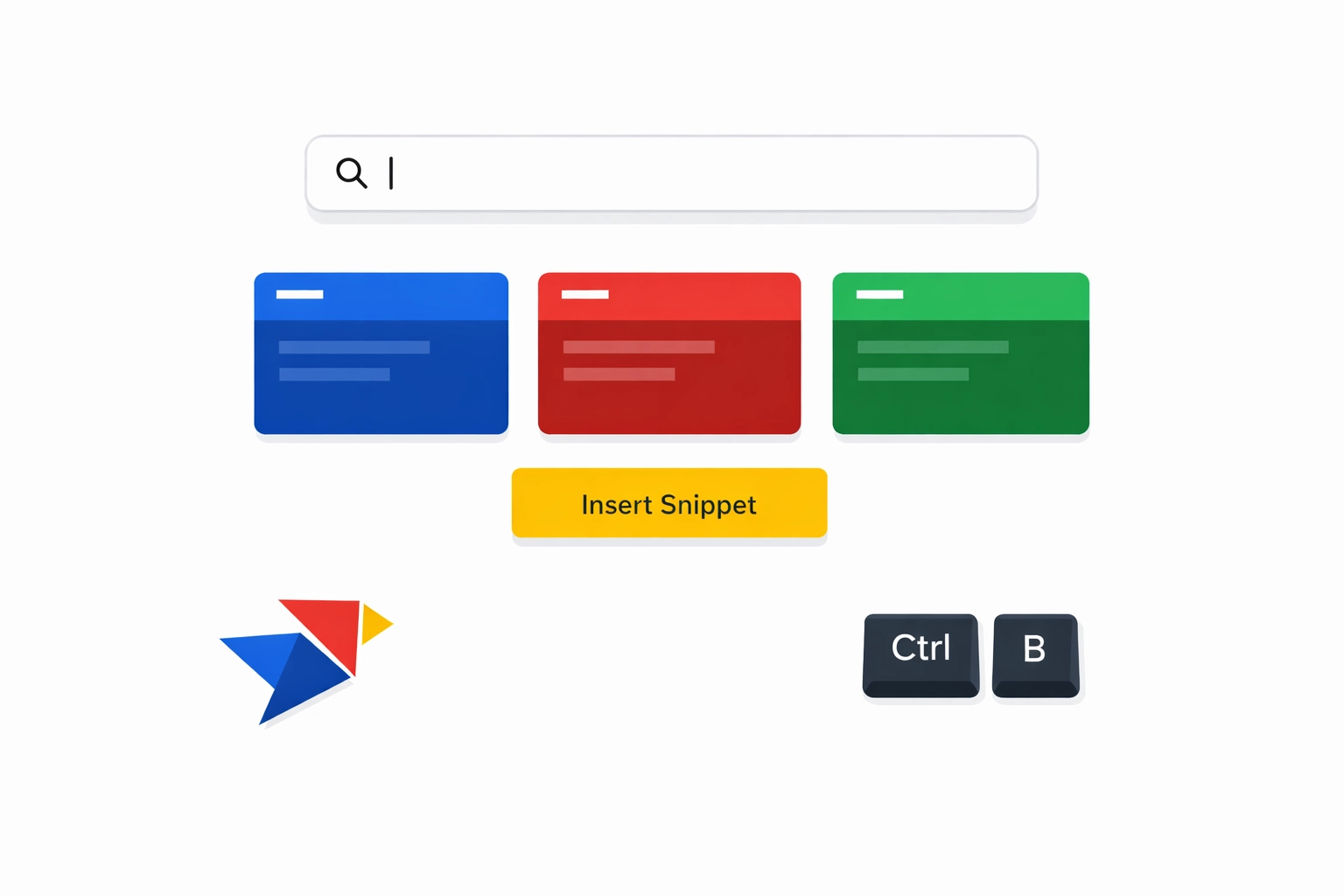
Then pull it up from any tab with Ctrl+B (Cmd+B on Mac).
Type a keyword.
Instant search.
One-click copy.
No tab switching.
No rewriting.
No “Sent” folder archaeology.
4. Set Specific Pages to Open on Startup
Stop wasting the first ten minutes of your day manually opening your tools. You can tell Chrome to launch your essential tabs automatically the moment you open the browser.
Go to Settings > On Startup > Open a specific page or set of pages.
Add your email provider, your CRM, and your Copyzoid dashboard. When you sit down at your desk and click that Chrome icon, your entire workstation is ready. It removes the friction of "getting started," which is often where procrastination begins.
5. Use Chrome Sync to Maintain Your Flow
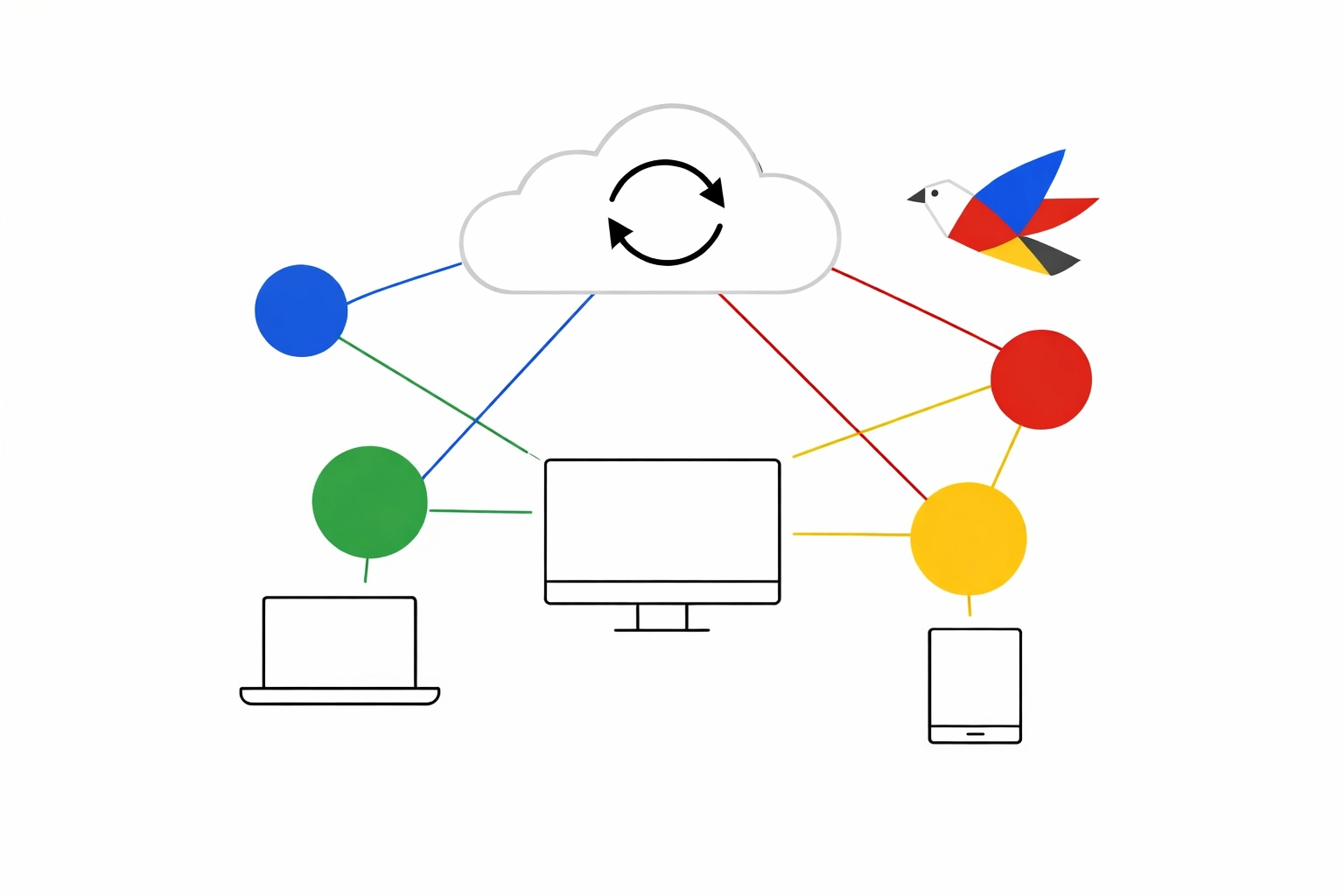
If you work from a laptop at the coffee shop and a desktop in the office, you need your environment to follow you. Chrome Sync ensures that your bookmarks, extensions, and history are identical across devices.
Make sure you are signed into your Google account in the browser. This means your Copyzoid snippets and your pinned tabs are exactly where you left them.
You shouldn't have to rebuild your productivity setup every time you change locations. Syncing your browser ensures that your "office" is wherever your login is.
6. Block Distractions with StayFocusd
Email is repetitive, but it’s also a gateway to distraction. You go in to reply to one message and end up scrolling through news or social media for twenty minutes.
StayFocusd is a Chrome extension that limits the amount of time you can spend on time-wasting websites. You can set a "Daily Allowance." Once you’ve used up your 10 minutes on LinkedIn, the site is blocked for the rest of the day.
This forces you to stay in your "Email Zone." It’s a simple way to protect your time from your own bad habits.
7. Use Google Mail Checker for Passive Monitoring
Do you find yourself clicking back to your email tab every two minutes just to see if someone replied? This context switching kills your momentum.
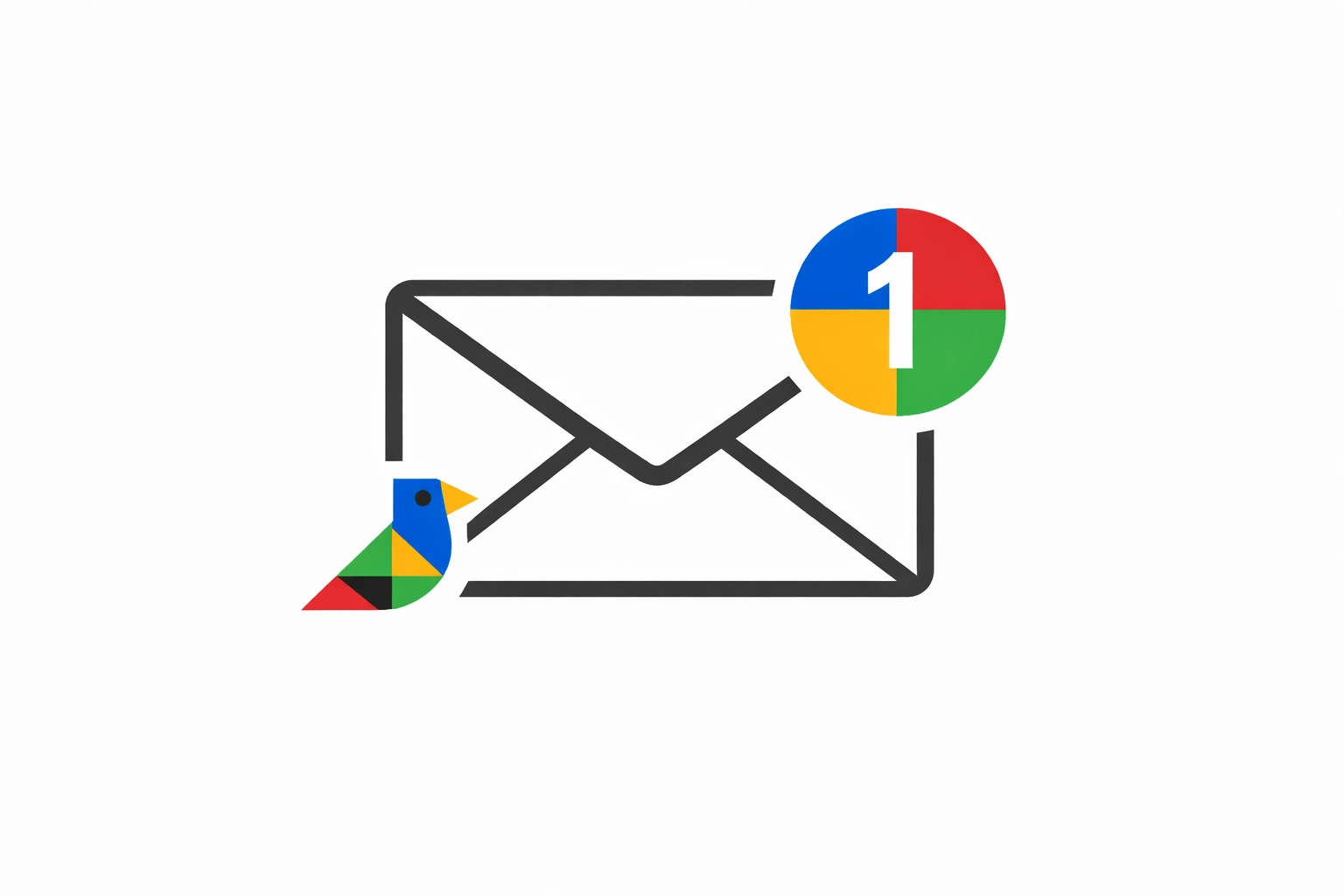
The Google Mail Checker extension puts a small icon in your browser toolbar that shows the number of unread messages. You don’t need to open the tab to know if anything is new.
If the number doesn't change, stay in your current task. If it does, you can decide if it's worth the interruption. It turns "checking email" from a constant distraction into an informed choice.
Why Simplicity Beats Complex Automation
You don’t need a “workflow revolution.”
You need your time back.
Most tools add setup.
That’s more time stolen. 🕒
These hacks stay inside Chrome.
Simple. Fast. Repeatable.
Add Copyzoid and you remove the worst part: rewriting. 🔁
The ROI of Stopping the Bleed
Save 30 seconds per email with Ctrl+B + saved snippets.
40 emails/day = 20 minutes back.
5 days/week = 1.5+ hours back.
And if you’re closer to the average?
That’s up to 4.2 hours/week reclaimed. Stolen time returned.
How to Get Started Today
Don’t do all seven.
Do the high-impact ones.
- Install Copyzoid: Chrome Web Store
- Save 3 repeat replies: intro, pricing, next steps ✉
- Use Ctrl+B for 1 hour: make it muscle memory
- Copy with one click: no formatting drama, no extra steps
Productivity isn’t hustle.
It’s less friction.
If you write the same message twice, you’re paying the copy-paste tax.
Stop paying it.
See plans on our pricing page. Keep your voice. Lose the retyping.
Leave a Reply