
You are probably typing the exact same sentences fifty times a day.
Whether it is a greeting to a client, a link to your calendar, or a standard support answer, repetitive typing is a silent productivity killer.
Every second you spend re-typing a phrase you’ve already written is a second stolen from your deep work. For knowledge workers, speed isn't just about how fast your fingers move; it’s about how little time you waste on the "boring stuff."
If you feel like your keyboard is holding you back, it’s time to change your workflow. Here are 7 quick hacks to stop wasting time and start typing like a pro.
1. Use a Dedicated Snippet Manager
The single most effective way to kill repetitive typing is to stop doing it entirely.
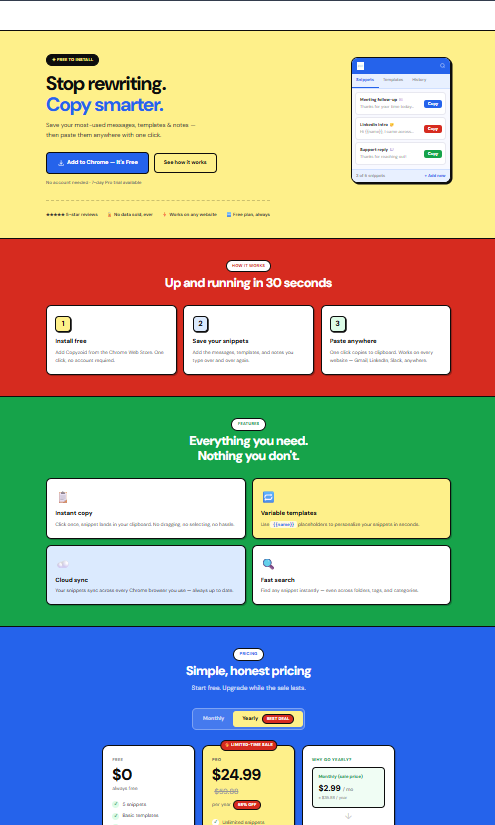
Most people rely on their memory or a messy "Notes" app to find text they use frequently. This is slow and breaks your focus. Instead, you should use a dedicated tool like the Copyzoid Chrome extension.
With a snippet manager, you save your most-used phrases once and access them instantly. Copyzoid allows you to organize these snippets into categories so you never have to search through a long document again.
The real game-changer is the Ctrl+B shortcut.
Instead of switching tabs to find a response, you hit Ctrl+B, search for your snippet, and use the one-click copy functionality. It’s the difference between a 30-second distraction and a 2-second action.
2. Master "Power" Keyboard Shortcuts
Most people know Ctrl+C and Ctrl+V. If that’s where your knowledge ends, you are leaving hours of productivity on the table.
To stop wasting time, you need to navigate your entire OS without touching the mouse. Every time you reach for your mouse, you break your typing rhythm.
Try these essential shortcuts today:
- Ctrl + Backspace: Deletes the entire word instead of a single letter.
- Ctrl + Right/Left Arrow: Jumps the cursor to the start of the next/previous word.
- Shift + Home/End: Highlights the entire line of text instantly.
- Alt + Tab: Switches between your browser and your CRM or email client.
When you combine these with the Copyzoid Ctrl+B shortcut, you become a keyboard ninja. You can pull up a template, copy it, and paste it into an email in under three seconds.

3. Learn the Art of Touch Typing
If you are still looking down at your keys to find the "P" or the "M," you are capped at a certain speed.
Touch typing is the ability to type without looking at the keyboard. It relies on muscle memory rather than visual confirmation.
When you look at the keys, your brain has to perform a double-check: "Is my finger in the right place? Yes. Did I hit it? Yes." This creates a massive mental load over an eight-hour workday.
By learning touch typing, you free your brain to focus on what you are writing rather than how you are writing it. Most touch typists can easily reach 80+ words per minute (WPM), while hunt-and-peck typists struggle to break 40 WPM.
You can find dozens of free online trainers to help you build this muscle memory. Even 10 minutes of practice a day will yield massive results within a month.
4. Customize Your Keyboard Layout
The standard QWERTY layout was actually designed to slow people down so old mechanical typewriters wouldn't jam.
In 2026, we don't have to worry about jamming keys, yet we still use a layout that forces our fingers to do a lot of unnecessary "traveling."
If you want to go full "productivity geek," look into alternative layouts like Dvorak or Colemak.
- Dvorak places the most common English letters on the "home row" (where your fingers naturally rest).
- Colemak is a middle ground that keeps some QWERTY shortcuts but optimizes for speed.
While there is a steep learning curve, users of these layouts often report significantly less finger fatigue and higher top speeds. If your job involves typing thousands of words a day, the investment pays off in the long run.
5. Harness Text Expansion for Variables
Sometimes a canned response isn't enough because you need to change a name, a date, or a link.
This is where variable templates come in. Instead of typing a whole email and then manually searching for the "Hi [Name]" part to edit it, use a system that allows for placeholders.
Copyzoid is built for this. You can create templates with clear gaps for customization. You hit Ctrl+B, grab the template, paste it, and just fill in the blanks.
This prevents the embarrassing "Hi [INSERT NAME HERE]" mistake that happens when you copy-paste from an old sent email. It keeps your communication professional while maintaining your speed.

6. Measure Your Progress and Set Goals
You can't improve what you don't measure.
Most people have no idea how fast they actually type. They just assume they are "fast enough."
Take a minute right now to go to a typing speed test site. Check your WPM and your accuracy.
- 60 WPM: The baseline for professional office work.
- 80 WPM: High efficiency; you are likely out-performing most of your peers.
- 100+ WPM: Elite level; typing is no longer a bottleneck for your thoughts.
Once you have your baseline, set a goal. Try to increase your speed by 5 WPM each month. As you get faster, you'll notice that you finish emails sooner, which gives you more time for deep work or, better yet, a longer lunch break.

7. Take Strategic Breaks to Avoid Fatigue
Speed is not just about raw velocity; it’s about sustainability.
If you type at 100 WPM but your wrists start hurting after two hours, your daily output will plummet. Repetitive Strain Injury (RSI) is a real threat to knowledge workers.
To keep your typing speed high, you need to take breaks every 20-30 minutes.
- Stretch your wrists.
- Look away from the screen.
- Shake out your hands.
A rested hand types faster than a cramped one. When you feel yourself getting sluggish or making more typos, it’s a signal from your brain and body that you need to step away.
Efficiency is about the long game. Using a tool like Copyzoid reduces the total number of keystrokes you make in a day, which directly lowers your risk of injury and fatigue.
Stop Typing, Start Executing
The goal of these hacks isn't just to make your fingers move faster. The goal is to eliminate the friction between your thoughts and your screen.
When you reduce repetitive typing, you reduce mental fatigue. You stay in "the zone" longer. You get more done in less time.
Start small:
- Install the Copyzoid extension.
- Save your top 5 most-used phrases.
- Practice using Ctrl+B for one day.
You will be amazed at how much lighter your workday feels when you aren't fighting your keyboard.
If you’re ready to scale your productivity, check out our pricing plans to see how our pro features can save you even more time.
Stop wasting time on the "how" of typing and start focusing on the "what." Your future, more productive self will thank you. 🚀
Leave a Reply