
You spend your day jumping between tabs, emails, and documents. You copy a link, then a name, then a snippet of text. Then you realize you needed that first link again.
It’s gone. You have to go back, find the tab, and copy it again.
This "copy-paste-repeat" cycle is a silent productivity killer. It breaks your focus and wastes hours every single week.
The solution is simple: a clipboard manager or a productivity Chrome extension. But with so many options, how do you choose the one that actually fits your workflow?
In this guide, we’ll break down the best tools for 2026, comparing desktop apps vs. browser extensions, and showing you exactly what to look for to reclaim your time.
The Problem with the "Default" Clipboard
Windows and Mac both have built-in clipboard histories. You’ve probably used Win+V on Windows. It’s a start, but it’s limited.
The default Windows clipboard only holds about 25 items. It doesn't sync well across different environments, and it definitely doesn't help you organize repetitive messages.
If you’re a knowledge worker, someone writing sales emails, support tickets, or code, you need more than a history of the last five things you copied. You need a library.
Clipboard Manager vs. Chrome Extension: Which is Better?
Before you pick a tool, you need to decide where you do most of your work.
1. The Desktop Clipboard Manager
These are standalone apps that live on your operating system (Windows, Mac, or Linux). They capture everything you copy in every app, Excel, Slack, Photoshop, you name it.
- Best for: People who work across many different desktop applications.
- Examples: Ditto (Windows), Paste (Mac), or CopyQ (Cross-platform).
2. The Chrome Extension
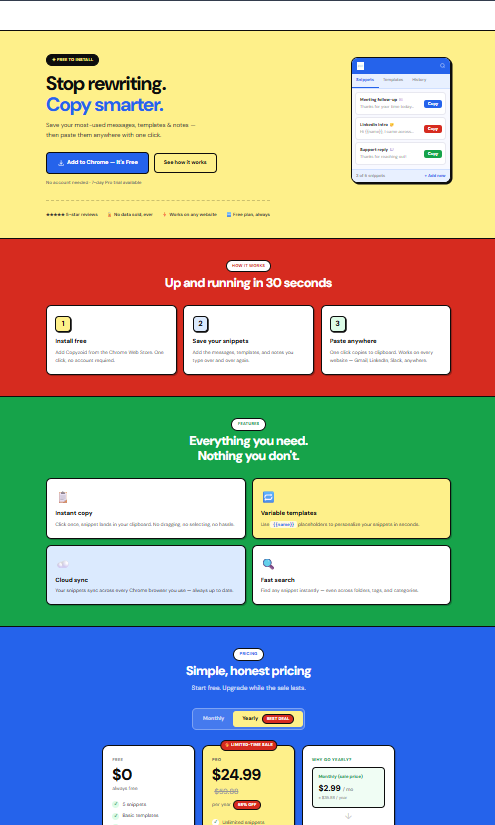
These live directly in your browser. Since most modern work happens in Gmail, LinkedIn, HubSpot, or Zendesk, a Chrome extension is often the faster, lighter choice.
- Best for: Sales teams, support agents, and anyone who spends 90% of their day in a browser.
- Examples: Copyzoid, Clipboard Manager Pro.

Description: A minimalist, geometric illustration featuring four colored blocks (Blue, Red, Green, Yellow) representing different digital workspaces merging into one clean white center.
Key Features You Actually Need
Don’t get distracted by shiny features you’ll never use. Focus on these four pillars of productivity:
1. Instant Search (Fuzzy Search)
If you have 1,000 saved snippets, scrolling is a waste of time. You need a tool that lets you type "Intro" and instantly find your "Introduction Email Template." Look for fuzzy search, it finds what you need even if you make a typo.
2. Smart Variables
This is where basic clipboard managers fail and productivity extensions like Copyzoid shine. A smart variable lets you save a template like:
"Hi {Name}, thanks for reaching out!"
When you paste it, the tool should ask you for the name or pull it automatically. This keeps your messages personal without the manual typing.
3. One-Click Copy & Keyboard Shortcuts
Speed is everything. You shouldn't have to click three menus to find a snippet.
With Copyzoid, we focused on the Ctrl+B shortcut. It opens your library instantly. From there, it's a one-click copy and you’re done. No friction, no fluff.
4. Cloud Sync
If you work from a laptop at the office and a desktop at home, your snippets need to follow you. Cloud sync ensures your outreach secrets and email templates are always at your fingertips.
Comparing the Top Players in 2026
Let’s look at how the most popular tools stack up against each other.
Ditto (Windows Only)
Ditto is a classic. It’s free, open-source, and stores thousands of clips.
- Pros: Handles massive amounts of data; very stable.
- Cons: The interface looks like it’s from 1995. It’s local-first, so syncing across devices can be a headache.
Paste (Mac Only)
Paste is the "pretty" option for Apple users. It turns your clipboard into visual cards.
- Pros: Beautiful UI; great iCloud sync.
- Cons: It’s a subscription model ($29.99/year), and it only works in the Apple ecosystem.
CopyQ (Cross-Platform)
For the power users and developers, CopyQ offers scripting and deep customization.
- Pros: Highly flexible; works on Linux.
- Cons: High learning curve. If you just want to send emails faster, this might be overkill.
Copyzoid (Chrome Extension)
Copyzoid is built specifically for speed and browser-based workflows. It bridges the gap between a clipboard manager and a text expander.
- Pros: Ctrl+B for instant access, one-click copy, and smart variables. It lives where you work (Chrome).
- Cons: Only works inside the browser (though that’s where most of us live anyway).
Why "Smart" Management Beats "Total" History
Some people think they need a tool that saves every single thing they've copied for the last six months.
In reality, that just creates a digital junkyard.
The most productive users don't just "manage a clipboard", they curate a library.
You should be able to organize your most-used links, outreach templates, and canned responses into folders. This is why a dedicated Chrome extension often beats a standard desktop manager. It’s not just about what you copied two minutes ago; it’s about having your best work ready to go at all times.

Description: A clean, white background with minimalist geometric shapes in brand colors (Blue, Red, Green, Yellow) arranged like a structured library or filing system.
The Decision Framework: Which One Should You Pick?
Still not sure? Ask yourself these three questions:
- Where do you work?
If you're always in the browser (Gmail, CRM, Social Media), get a Chrome Extension like Copyzoid. If you're editing video or writing code in a local IDE, a Desktop Manager is better. - Do you send the same messages repeatedly?
If yes, you need Smart Variables. Don't just settle for a history tool; get a tool that lets you fill in names and dates on the fly. - How much do you value speed?
If you want to stay in "the zone," keyboard shortcuts are non-negotiable. Test how many clicks it takes to find and paste a snippet. If it's more than two, keep looking.
How to Get Started
If you’re ready to stop wasting time on repetitive typing, the best way is to start small.
- Identify your "Top 5": What are the 5 things you copy-paste every single day? (Your meeting link? A specific bio? A common support answer?)
- Choose your tool: For a simple, fast experience in Chrome, check out our pricing page to see how we compare.
- Set your shortcut: Memorize Ctrl+B. It will become your best friend.
Stop letting your clipboard be a source of frustration. Organize your workflow, eliminate the repetitive tasks, and get back to the work that actually matters.

Ready to transform your productivity? Try Copyzoid for free and see the difference a smart clipboard can make.
Leave a Reply