

Every time you move your hand from your keyboard to your mouse, you lose roughly three seconds.
It doesn't sound like a lot. But if you do it 100 times a day, you’ve just wasted five minutes. Over a year, that is dozens of hours lost to "mouse travel."
Most professionals spend their days writing emails, updating spreadsheets, or chatting on Slack. If you are still reaching for the mouse to highlight a word or move the cursor to the start of a line, you are working harder than you need to.
This guide will show you how to break the mouse habit. We will cover the essential shortcuts that turn a slow typist into a productivity machine.
The Foundation: Basic Editing Operations
You likely know the basics, but are you using them every single time? These are the bread and butter of digital work.
- Copy: Ctrl + C (Windows) / Cmd + C (Mac)
- Cut: Ctrl + X (Windows) / Cmd + X (Mac)
- Paste: Ctrl + V (Windows) / Cmd + V (Mac)
- Undo: Ctrl + Z (Windows) / Cmd + Z (Mac)
- Redo: Ctrl + Y (Windows) / Cmd + Shift + Z (Mac)
The goal here is muscle memory. You shouldn't have to think about these. Your fingers should just move.
Cutting is often underutilized. If you need to move a sentence from the bottom of an email to the top, don't copy and then go back to delete it. Cut it once and paste it where it belongs.

Navigation: Moving Without the Mouse
The biggest time-waster is using the mouse to click between letters to fix a typo. You can move much faster using the Arrow keys combined with Modifier keys.
Moving Word by Word
Instead of tapping the left arrow ten times to get to the start of a word, hold Ctrl (Windows) or Option (Mac).
- Previous word: Ctrl + Left Arrow
- Next word: Ctrl + Right Arrow
This allows you to "teleport" through a sentence. It’s the difference between walking and driving.
Jumping to the Ends of Lines
If you need to get to the beginning or end of a sentence quickly, stop dragging the cursor.
- Beginning of line: Home (Windows) / Cmd + Left Arrow (Mac)
- End of line: End (Windows) / Cmd + Right Arrow (Mac)
Document-Level Navigation
For long reports or long-form blog posts, scrolling with the mouse wheel is inefficient.
- Start of document: Ctrl + Home (Windows) / Cmd + Up Arrow (Mac)
- End of document: Ctrl + End (Windows) / Cmd + Down Arrow (Mac)
Using these shortcuts keeps your hands on the home row, which is where the real work happens.
Selection: Highlighting Text at Speed
Once you master navigation, selection becomes easy. The rule is simple: Combine Shift with any movement key.
If you want to select the word to the left, don't click and drag. Just hold Shift + Ctrl + Left Arrow.
- Select Characters: Shift + Left/Right Arrow
- Select Words: Ctrl + Shift + Left/Right Arrow
- Select to Line Beginning: Shift + Home
- Select to Line End: Shift + End
- Select Entire Document: Ctrl + A (Windows) / Cmd + A (Mac)
This is particularly useful when you realize an entire paragraph needs to be deleted or moved. You can select the whole block in less than a second without ever touching the mouse.

Power Deletion: Stop Tapping Backspace
Most people delete text character by character. If you made a mistake on a long word, you tap Backspace eight times. This is slow.
You should be deleting entire words at a time.
- Delete previous word: Ctrl + Backspace (Windows) / Option + Delete (Mac)
- Delete next word: Ctrl + Delete (Windows) / Fn + Option + Delete (Mac)
This single change will make your editing process feel twice as fast. It forces you to think in chunks of meaning rather than individual letters.
Formatting on the Fly
Stop going to the top menu bar to click the "B" icon. It breaks your flow and pulls your eyes away from your content.
- Bold: Ctrl + B (Windows) / Cmd + B (Mac)
- Italic: Ctrl + I (Windows) / Cmd + I (Mac)
- Underline: Ctrl + U (Windows) / Cmd + U (Mac)
In most modern apps, you can even apply these to a word while your cursor is just touching it, or highlight a phrase using the selection shortcuts above and hit Ctrl + B to emphasize it instantly.

Taking Shortcuts to the Next Level with Copyzoid
Keyboard shortcuts are great for editing, but what about repetitive typing?
If you find yourself typing the same "Let's hop on a call" or "Thanks for reaching out" messages every day, standard Windows or Mac shortcuts won't help you much. You need a tool that handles the heavy lifting.
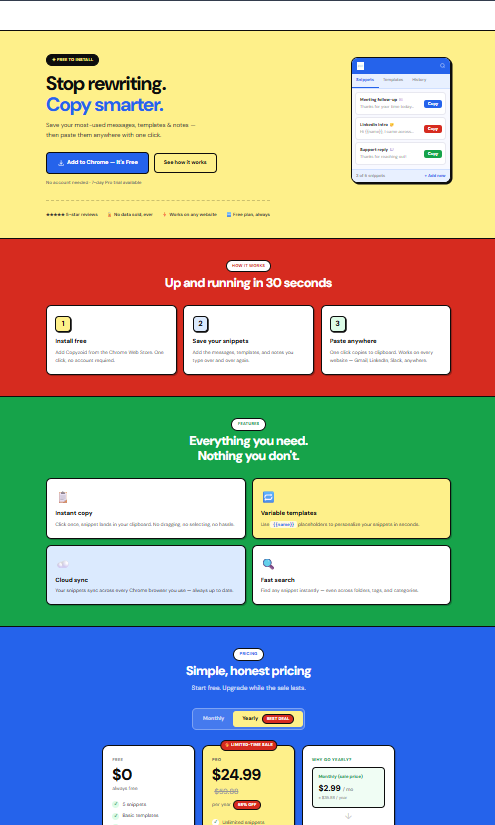
This is where Copyzoid comes in. It is a productivity extension designed to eliminate the need for repetitive typing entirely.
The Power of Ctrl + B
While Windows uses Ctrl + B for bolding text, Copyzoid uses a dedicated shortcut system to help you access your entire library of snippets instantly.
When you use the Copyzoid Chrome Extension, you can save your most-used phrases, links, and templates.
Instead of searching through your "Sent" folder to find an old email to copy-paste:
- Open your dashboard.
- Use one-click copy to grab your snippet.
- Paste it instantly.
It transforms your browser into a high-speed communication hub.
Why Speed Matters for Knowledge Workers
If you work in sales, customer support, or marketing, your output is your currency. The faster you can communicate, the more you can achieve.
Using keyboard shortcuts isn't just about being "tech-savvy." It's about reducing friction. When you eliminate the physical delay of moving your mouse, your ideas flow directly from your brain to the screen.
Practical Scenario: The Sales Follow-Up
Imagine you need to follow up with a lead.
- The Mouse Way: Click the search bar, type the name, click the email, click "Reply," type the message manually, click "Send."
- The Shortcut Way: Use Ctrl + Tab to switch to your email, use Ctrl + B (via Copyzoid) to find your "Follow-up Template," hit Enter to paste, and use Ctrl + Enter to send.
You just saved 45 seconds. Do that 20 times a day, and you’ve reclaimed your lunch break.
How to Build the Habit
You won't learn all of these today. If you try to memorize them all at once, you’ll get frustrated and go back to the mouse.
Try this 3-step plan:
- Pick Two: Choose two shortcuts from this list (like Ctrl + Backspace and Ctrl + Right Arrow).
- Commit: Force yourself to use them all day. If you catch yourself reaching for the mouse to delete a word, stop. Move your hand back. Use the shortcut.
- Add More: Once those two are automatic, come back to this list and pick two more.
Within a month, you will be navigating your computer like a pro.
Simple Pricing for Professional Speed
Productivity shouldn't be expensive. At Copyzoid, we believe in keeping things simple and functional.
If you are ready to stop wasting time on repetitive manual tasks and want to organize your professional life, check out our pricing page. We offer a free plan to get you started, because we know once you feel the speed of instant snippets, you won't want to go back.
Summary of the Best Shortcuts
| Task | Windows Shortcut | Mac Shortcut |
|---|---|---|
| Move Word by Word | Ctrl + Arrows | Option + Arrows |
| Delete Entire Word | Ctrl + Backspace | Option + Delete |
| Select Word | Ctrl + Shift + Arrow | Cmd + Shift + Arrow |
| Go to Start/End of Line | Home / End | Cmd + Arrows |
| Instant Snippets | Copyzoid Dashboard | Copyzoid Dashboard |
Stop letting your mouse dictate your pace. Start using your keyboard the way it was intended.
Ready to supercharge your workflow? Install Copyzoid today and start saving hours every week.
Leave a Reply