
TL;DR: Stop using your mouse for everything. Master the basics like Ctrl+C and Ctrl+V, then level up with word-by-word navigation and finding text. For the ultimate productivity boost, use Copyzoid’s Ctrl+B to manage all your snippets and save over 4 hours every week.
The Problem with Manual Clicking
Every time you reach for your mouse to highlight a sentence, right-click, and select "Copy," you lose focus. It might only take two seconds, but those seconds add up. For knowledge workers, these tiny interruptions are productivity killers.
If you do this 100 times a day, you’re wasting chunks of time that could be spent on actual work. Most of us are stuck in a cycle of repetitive manual tasks. The good news? You can break that cycle today by keeping your hands on the keyboard.
1. The Holy Trinity: Copy, Cut, and Paste
It sounds basic, but many people still rely on the right-click menu. If you want to move fast, you need these burned into your muscle memory.
- Copy: Ctrl+C (Windows) / Cmd+C (Mac)
- Cut: Ctrl+X (Windows) / Cmd+X (Mac)
- Paste: Ctrl+V (Windows) / Cmd+V (Mac)
Pro Tip: If you want to paste text without the weird formatting from a website, use Ctrl+Shift+V. This pastes "plain text," making sure your email or document stays clean and consistent.
2. Select All and The Safety Net (Undo/Redo)
Ever accidentally deleted a whole paragraph? Don't panic. You don't need to retype it.
- Select All: Ctrl+A (Windows) / Cmd+A (Mac). Perfect for clearing a field or moving an entire document.
- Undo: Ctrl+Z (Windows) / Cmd+Z (Mac). The universal "oops" button.
- Redo: Ctrl+Y (Windows) / Cmd+Shift+Z (Mac). For when you undo too much.
Using these shortcuts makes you feel fearless while editing. You can experiment with changes knowing you’re only one keystroke away from fixing a mistake.

3. Navigate Like a Pro: Jump Word by Word
Stop clicking between letters to fix a typo. It’s slow and frustrating. Instead, use the Control (or Option) key to leap across sentences.
- Move word by word: Hold Ctrl (Windows) or Option (Mac) and use the Left/Right arrows.
- Highlight word by word: Hold Ctrl+Shift (Windows) or Option+Shift (Mac) while using the arrows.
This allows you to navigate through a long email or report in seconds. It keeps your hands in the typing position, which maintains your flow and mental momentum.
4. Lightning-Fast Deletion
If you’re still tapping the Backspace key ten times to delete a word, you’re working too hard.
- Delete the word to the left: Ctrl+Backspace
- Delete the word to the right: Ctrl+Delete
This simple trick changes the way you edit. You can "sweep" through bad sentences and replace them with better ideas almost as fast as you can think of them.
5. Instant Formatting (Bold, Italic, Underline)
Formatting shouldn't require a trip to the toolbar at the top of your screen. Whether you are in Google Docs, Slack, or an email client, these usually work everywhere.
- Bold: Ctrl+B / Cmd+B
- Italic: Ctrl+I / Cmd+I
- Underline: Ctrl+U / Cmd+U
Keeping your headers bold and your key points emphasized helps with readability. By using shortcuts, you ensure your communication is clear and professional without slowing down your output.
6. Find and Replace: The Mass Editor
Stop scrolling through a 10-page document looking for one specific word.
- Find: Ctrl+F / Cmd+F. Type what you’re looking for and jump straight to it.
- Replace: Ctrl+H (Windows). Need to change a client’s name across an entire contract? This does it in one click.
This is a massive time-saver for anyone in sales, legal, or customer support. It eliminates the risk of missing a single instance of a word that needs changing.
7. The Ultimate Shortcut: Copyzoid’s Ctrl+B
Standard shortcuts are great, but they only handle one piece of information at a time. What happens when you have ten different "canned responses" you need to use throughout the day?
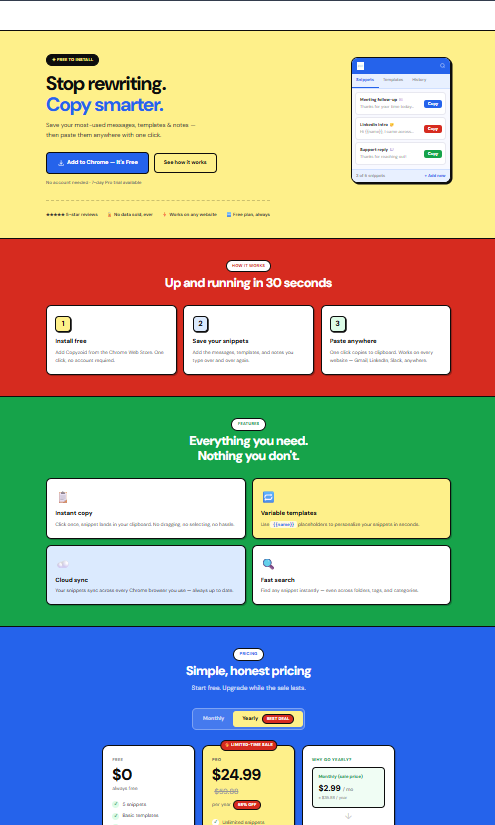
This is where Copyzoid changes the game. Instead of opening a "Notes" document to copy and paste the same five sentences over and over, you use Ctrl+B.
How it works:
- Save your most-used phrases, links, or email templates in Copyzoid.
- Press Ctrl+B anywhere in your browser.
- Search for your snippet and hit enter to paste.
It is a clipboard manager for Chrome that lives where you work. It eliminates the "search and find" mission that eats up your afternoon. By using Copyzoid, the average user saves 4.2 hours a week. That’s half a workday reclaimed just by stopping the manual copy-paste dance.

Why Shortcuts Matter for Your Career
Efficiency isn't just about finishing work early. It’s about reducing cognitive load. When you don't have to think about how to move text, you can focus entirely on what you are writing.
Knowledge workers who master these shortcuts are often seen as more capable and tech-savvy. They respond to emails faster, finish reports quicker, and have more time for high-level strategy.
How to Build the Habit
Don't try to learn all seven at once. Pick two that you don't currently use (maybe the "jump word by word" or the "Ctrl+B" snippet search) and commit to using them for one full day.
By the end of the week, they will be automatic. Once those are locked in, come back and pick two more. Within a month, you'll be navigating your computer like a power user.
If you’re ready to stop the repetitive typing for good, check out our pricing to see how you can get started with a free account. We prioritize your data privacy so you can save your snippets with peace of mind.

FAQ: Common Questions About Text Shortcuts
What is the fastest way to copy and paste?
The fastest way is using keyboard shortcuts: Ctrl+C to copy and Ctrl+V to paste. To take it even further, use a tool like Copyzoid to manage multiple snippets so you don't have to keep going back to the source text.
Does Ctrl+B work in every browser?
Standard bolding (Ctrl+B) works in most text editors. However, the Copyzoid Ctrl+B shortcut is designed specifically to open your snippet manager within Google Chrome, making it accessible on any website or web app you use.
How do I paste without the original formatting?
On Windows, use Ctrl+Shift+V. This is a life-saver when copying text from a website into a professional email, as it removes colors, fonts, and sizes, matching the style of your current document.
Can I create my own shortcuts?
Yes, many operating systems allow custom shortcuts, but it can be complicated to set up. A simpler way is to use a browser extension like Copyzoid, which allows you to assign "fuzzy search" terms to your text snippets for near-instant access.
Are keyboard shortcuts better than using a mouse?
Yes. Studies consistently show that keyboard shortcuts are significantly faster than moving a mouse, finding a cursor, and clicking through menus. It also reduces the physical strain on your wrist.
Is it safe to store my snippets in a browser extension?
It depends on the extension. At Copyzoid, we take your security seriously. You can read our Terms of Service to see how we handle your data and ensure your snippets stay yours.
Leave a Reply