You are likely losing at least an hour every day to repetitive manual tasks.
Whether it is retyping the same "Intro" email, hunting for a specific link, or clicking through five different menus just to find a snippet of text, these micro-actions kill your momentum. The right productivity browser extension shouldn't just be another icon in your toolbar; it should be a tool that actively removes friction from your workflow.
Choosing the wrong one leads to "extension bloat," which slows down your browser and complicates your life. Choosing the right one makes you feel like you have a superpower.
In this guide, we will compare the top categories of extensions and show you how to pick the one that actually moves the needle for your business.
Identify Your Biggest Time Sink
Before you head to the Chrome Web Store, you need to know what problem you are trying to solve. Most productivity struggles fall into three buckets:
- The Distraction Trap: You start to work but end up on social media or news sites.
- The Organization Mess: You have 50 tabs open and can’t find your tasks or notes.
- The Repetitive Motion: You spend your day typing the same responses, copying the same links, and filling out the same forms.
If you are a knowledge worker, the third bucket: repetitive motion: is usually where the most time is leaked.

Category 1: Distraction Blockers (Focus Tools)
If your main issue is discipline, you need a blocker. These tools are designed to save you from yourself.
- StayFocusd: This is a classic. It allows you to set a time limit on "wasteful" websites. Once your time is up, those sites are blocked for the rest of the day. It’s highly customizable but can be a bit rigid if your job requires occasional social media use.
- Strict Workflow: This uses the Pomodoro technique. It blocks distracting sites for 25-minute sprints and gives you a 5-minute break.
The Verdict: These are great for students or deep-work sessions, but they don't help you do your work faster: they just stop you from not working.
Category 2: Task and Tab Management
If you feel overwhelmed by the sheer volume of "stuff" in your browser, look here.
- Todoist: Perfect for keeping your to-do list inside your browser. It’s simple, syncs everywhere, and handles reminders well.
- OneTab: If your browser looks like a mess of tiny icons, OneTab collapses all your open tabs into a single list. It saves memory and mental energy.
- ClickUp: A more robust project management tool that lives in your sidebar. Great for teams, but might be "overkill" if you just want to get things done quickly.

Category 3: The "Speed" Extensions (Text & Snippet Management)
This is where the real ROI is for most professionals. If you send emails, talk to customers, or manage data, you are likely typing the same things over and over.
While tools like Grammarly help with your spelling, they don't help with your speed. This is where Copyzoid enters the picture.
Why Copyzoid Wins on Functional Efficiency
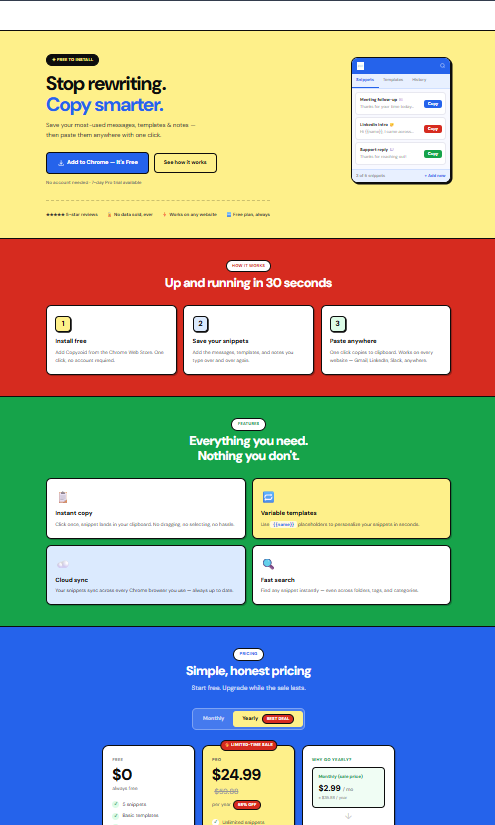
Most extensions require you to click an icon, search a list, and then copy/paste. That’s too many steps. Copyzoid is built for speed.
- The Ctrl+B Power Move: This is the core of the product. Instead of clicking around, you hit Ctrl+B (or Cmd+B on Mac). Your snippets pop up instantly. You search, you hit enter, and you’re done.
- Smart Variables: Imagine a snippet that automatically asks for a name or date when you use it. You don't have to go back and edit the text manually. You fill the variable, and the snippet is perfect every time.
- Cloud Sync: You can save a snippet on your work computer and it’s waiting for you on your laptop at home.
- One-Click Copy: Even without the shortcut, the interface is designed to get text into your clipboard with zero friction.
The Comparison: Feature Breakdown
When you compare a productivity browser extension like Copyzoid against general tools, the difference in "clicks-to-completion" is massive.
| Feature | Copyzoid | Standard Text Expanders | General Productivity Tools |
|---|---|---|---|
| Access Speed | Instant (Ctrl+B) | Medium (Click menu) | Slow (Open new tab) |
| Learning Curve | 1 Minute | 15-30 Minutes | High |
| Sync | Included | Often Paid | Varies |
| Variables | Smart/Interactive | Basic | None |
| Setup | Simple Chrome Install | Complex Software | Account Heavy |
5 Checklist Items Before You Hit "Add to Chrome"
Not all extensions are created equal. Before you install anything, run it through this filter:
1. Does it have a global shortcut?
If you have to take your hands off the keyboard to use a "productivity" tool, it’s not as productive as it could be. Look for tools like Copyzoid that prioritize keyboard-first workflows. The Ctrl+B shortcut is a game changer for keeping your hands in the "flow."
2. Is the UI "Simple" or "Flashy"?
Flashy UIs with lots of animations look cool in demos but slow down your browser. You want a minimalist interface. Look for a tool that uses a simple, color-blocked, or geometric design. It should feel like a part of your browser, not an extra weight.
3. Does it respect your privacy?
Extensions can see a lot of data. Always check the developer’s privacy policy. You want a tool that only accesses what it needs to function.
4. How is the pricing structured?
Many tools lure you in with a free version and then hide the "good" features behind a $20/month paywall. We believe in being transparent. You can check our straightforward pricing here. We keep it simple because your tools should reduce stress, not add to your monthly bills.
5. Does it solve a daily problem?
Don't install an extension you might use "someday." Install the one that solves the thing you did 50 times today. If you copied and pasted the same link to five different people this morning, you need a clipboard manager.

How to Get Started (The 2-Minute Rule)
The best way to choose is to test. But don't test five at once.
- Pick one category: Let’s start with text and snippet management because it offers the fastest time-to-value.
- Install Copyzoid: It takes about 30 seconds to add to Chrome.
- Add 3 snippets: Your email signature, your most common meeting link, and a standard "thank you" message.
- Use Ctrl+B: Try it for one afternoon.
If you find yourself saving even 5 minutes a day, that’s over 20 hours a year saved. That is the power of a specialized productivity browser extension.
The Bottom Line
Productivity isn't about doing more work; it’s about removing the boring work.
Stop retyping. Stop searching through your sent folder for that one link. Stop letting your browser be a source of friction.
By focusing on speed, keyboard shortcuts, and simple cloud sync, you can turn your browser into a high-performance machine. Whether you need to block distractions or manage your snippets, the right extension is the one that gets out of your way and lets you work.
Ready to stop wasting time? Add Copyzoid to your browser today and see how much faster your day moves when you never have to type the same thing twice.
Interested in how we handle your data? Read our Terms of Service or explore our Privacy Policy for more details.
Leave a Reply